
SHOWCASE
Sample stock, handled end to end.
Updated
Samples are the cheapest thing most manufacturers post, and the hardest to keep track of. We built this for a real customer: a UK manufacturer that posts samples of its products to customers who are deciding what to buy. They needed every sample counted, picked correctly, posted the same day and reordered before the drawer runs dry, without anyone keeping a spreadsheet. It is built, and it is being prepared for their go-live.
To show it without their data, this showcase follows an example firm, Hartwell & Pryce Engineering at its Brighouse works, which sells 100 x 70 mm finish sample plates through its WooCommerce shop. The company, people and orders are examples. Every screen is from the SmartFACT products themselves.
The problem: samples are stock too
A sample costs pennies, so it rarely gets the attention a product gets. But samples behave exactly like stock. They arrive from a supplier, sit in a drawer, go out in envelopes and run out. When nobody counts them:
- the drawer is empty on the day a big customer asks;
- someone reorders in a panic, or two people reorder at once;
- the wrong finish goes in the envelope, and the customer judges the product by it;
- the shop says "in stock" while the shelf says otherwise;
- nobody can say where last month's samples went.
The brief was simple to say and fiddly to do: treat samples as stock, from the moment a shop order arrives to the moment the supplier's next delivery is counted in.
What the customer asked for
- Every shop order takes its samples off stock by itself, and a refund or failed payment does the right thing.
- A pick ticket for every order, printed where the picking happens.
- A check that the right sample went into the right envelope.
- The courier label booked from one scan, and the shop told the order has gone, with its tracking number.
- A reorder before a sample runs out, which nobody can send to the supplier without approval.
- Deliveries checked against what was ordered, in part or in full.
- Regular counts, with every correction recorded with its reason.
- One history that answers "where did it go?" for any sample, on any day.
Five SmartFACT products cover it between them, each doing one job and keeping its own records.
The daily job
This is what happens every working day, and it is where the time goes. It is the first thing the showcase walks through.
1. An order arrives from the shop
A customer comparing finishes orders two plates: one brushed stainless steel and one satin anodised aluminium. SmartFACT Data holds a reviewed connection to the WooCommerce shop: it reads each order and its status, works out the quantity each order should take from stock, and sends that to StoresFlow. A processing order takes stock; a failed payment takes nothing; a refund puts back exactly what was taken. The connection reads the shop with a read-only key, so it can never change an order.
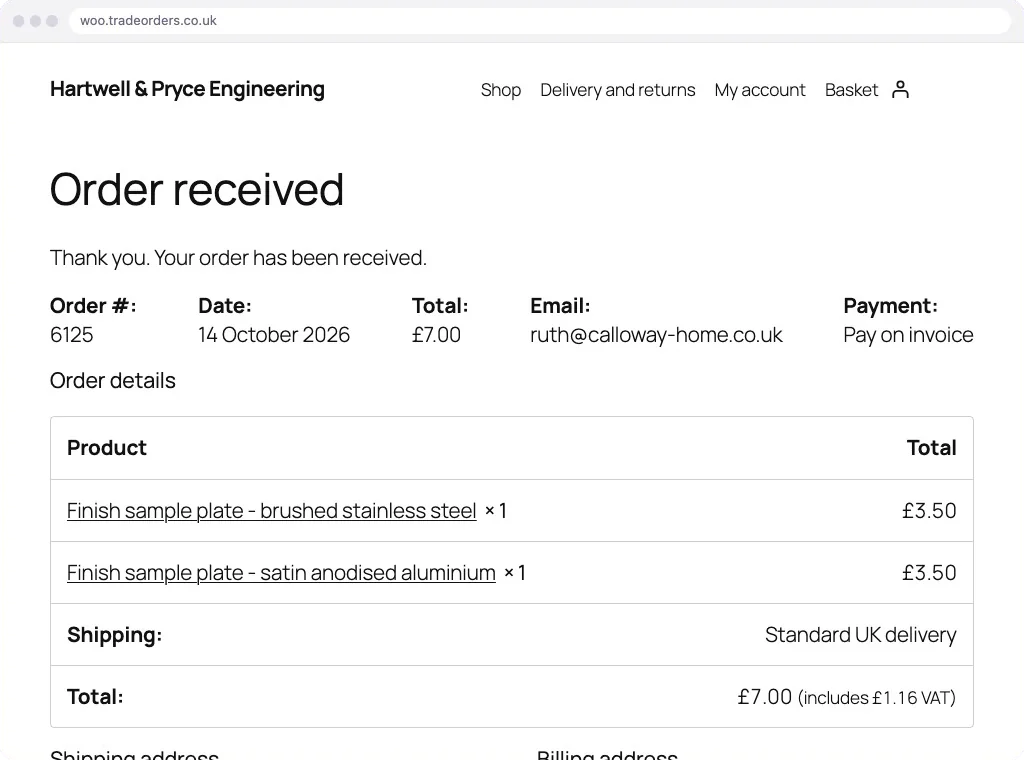
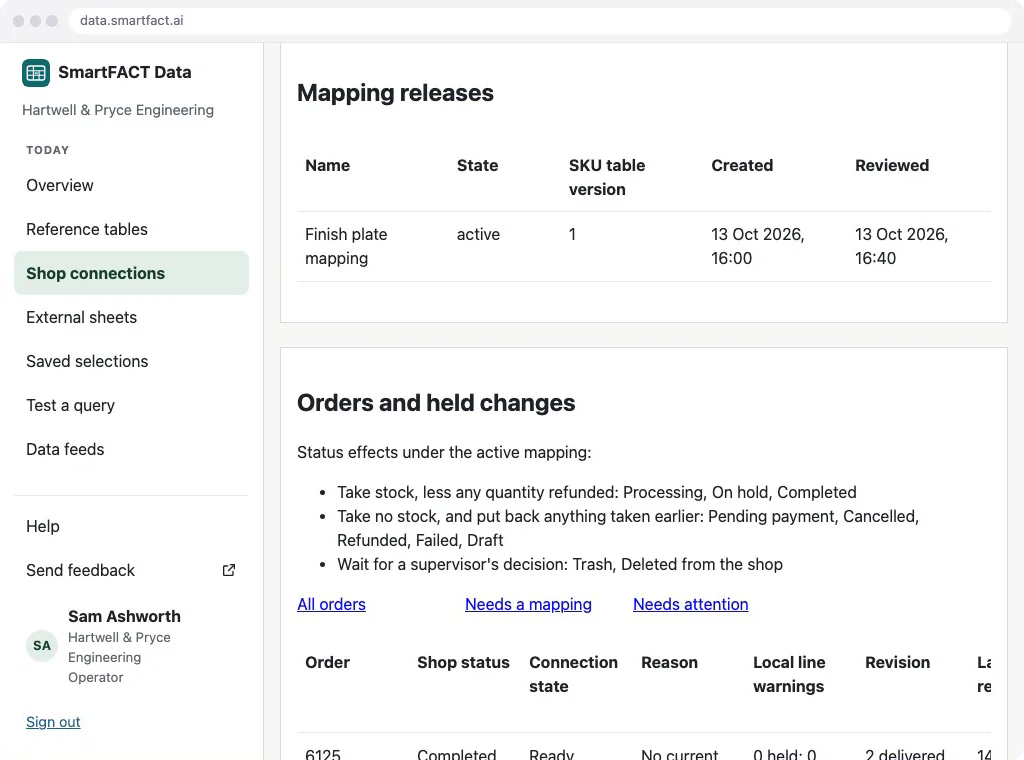
Each order reaches StoresFlow under the shop's own number with a two-letter prefix, so order 6125 becomes HP-6125. One prefix per shop means a business with several shops can despatch them all from one bench without mixing them up.
2. Stock comes off, and the pick ticket prints
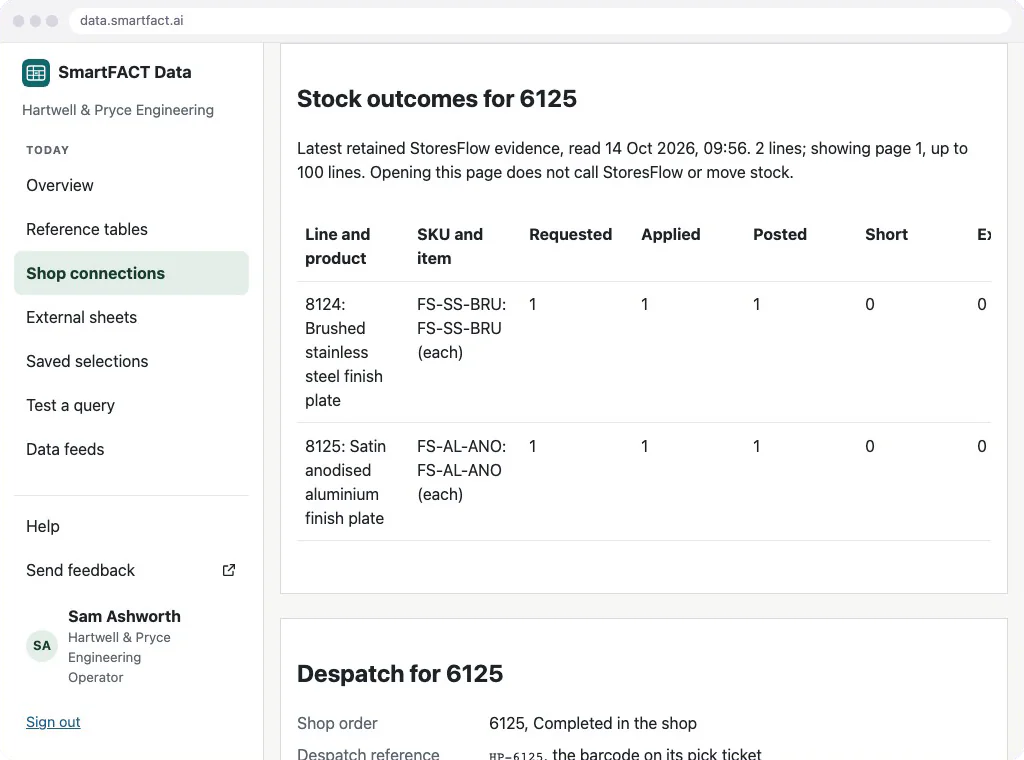
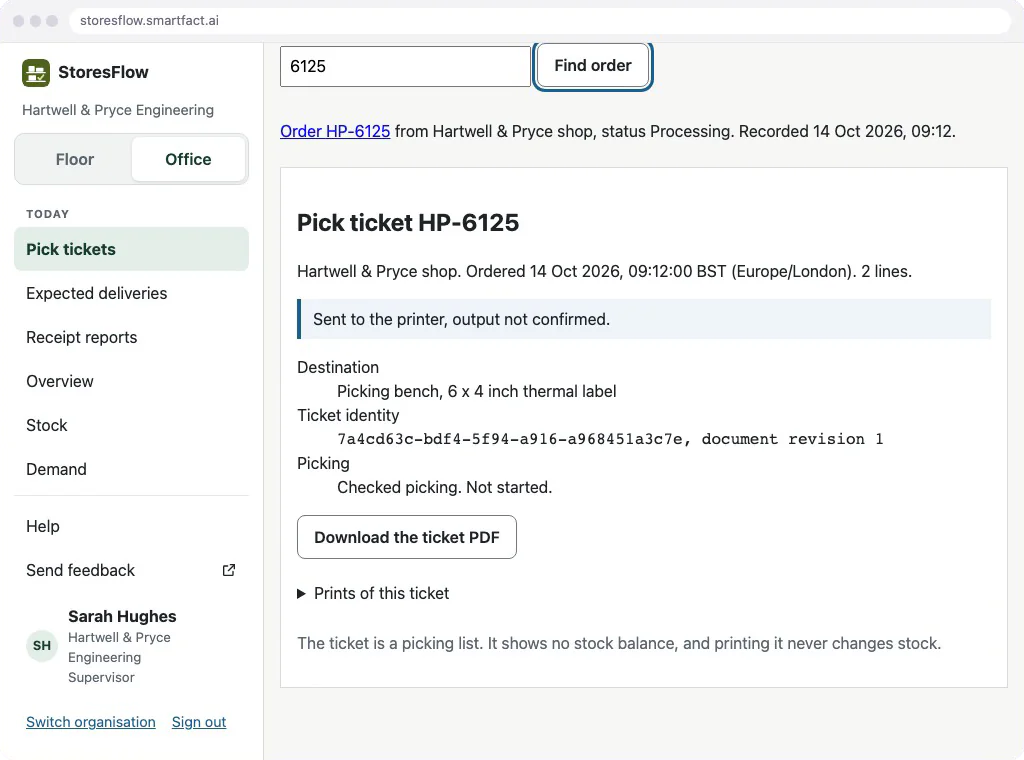
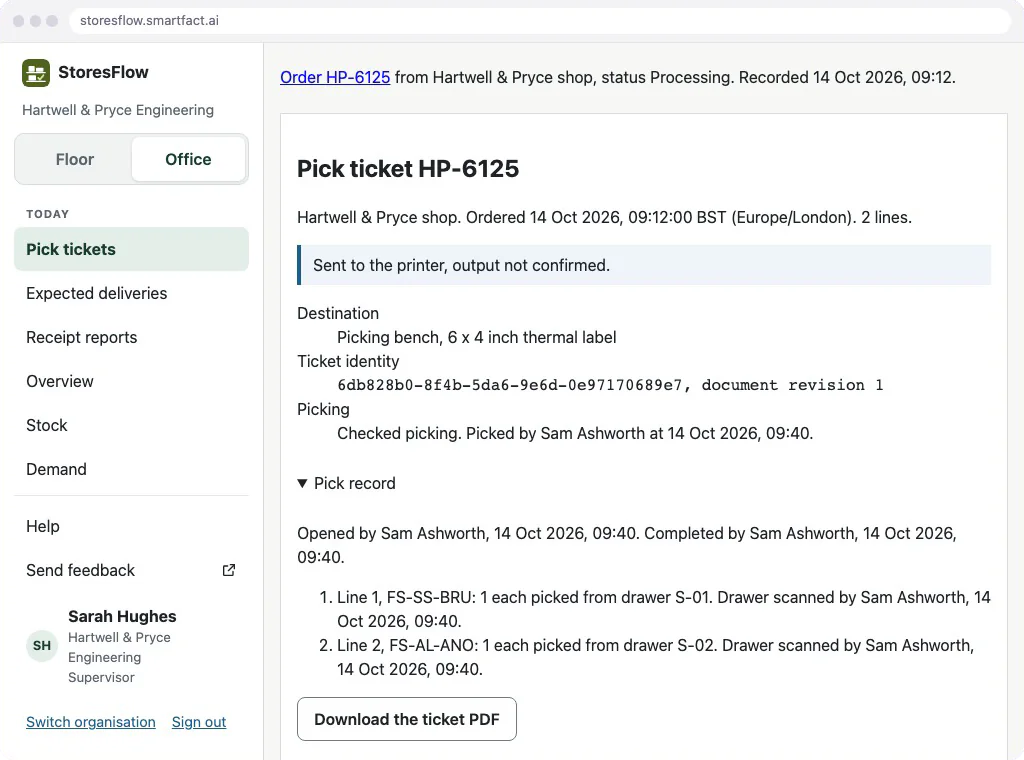
StoresFlow takes both plates off stock the moment the order arrives, so the shop and the stockroom agree. At the same moment its pick ticket prints at the picking bench through SmartFACT PrintStation, on a 6 x 4 inch label printer or A4. The ticket lists each line with its home bin and quantity, and carries the order number as a barcode. Printing never changes stock, and a reprint is the same ticket, never a new order.
3. The pick, checked
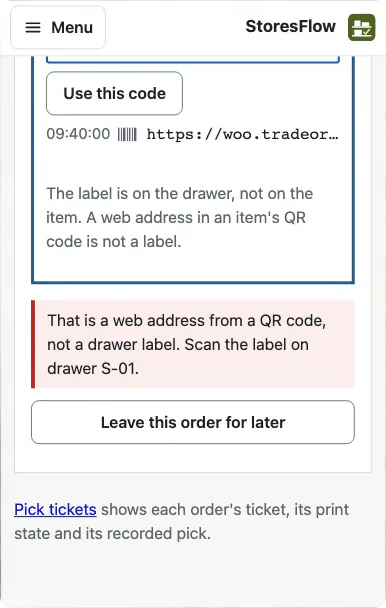
Hartwell & Pryce picks under Checked picking. The picker scans the ticket on a handheld or a phone, then the label on the plate's drawer, and confirms the quantity. Every plate has one home drawer, so scanning the drawer proves the right finish went into the envelope. Scan the plate's own QR code by habit, and StoresFlow says so and asks for the drawer label instead. If the drawer is short, the picker says how many were there and StoresFlow flags the drawer for a count. Picking never moves stock a second time.
4. The label, in one scan
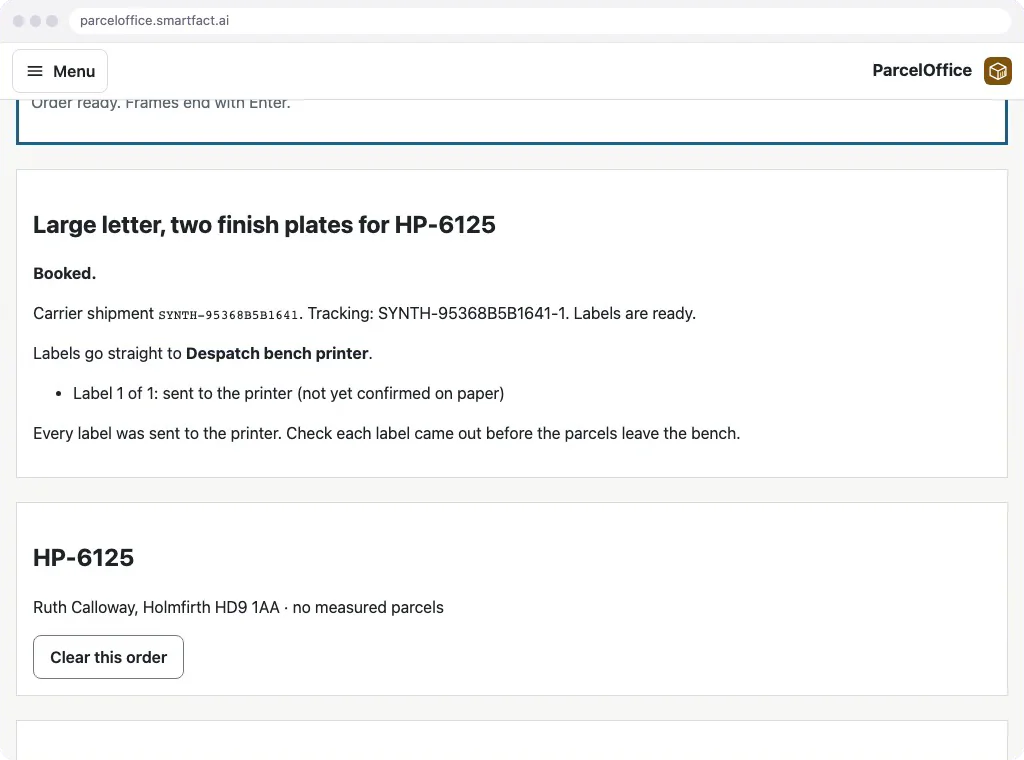
At the despatch bench the packer scans the same ticket in ParcelOffice. ParcelOffice looks the order up through SmartFACT Data, which reads the delivery address from the shop at that moment and passes it straight through without keeping it. When only one service fits, as it does for two plates in a large letter, the scan books the Royal Mail label and prints it on the bench's label printer. Scan the ticket again and ParcelOffice shows the booking it already made, and books nothing. Addresses are cleared from ParcelOffice soon after the booking closes.
5. The shop is told
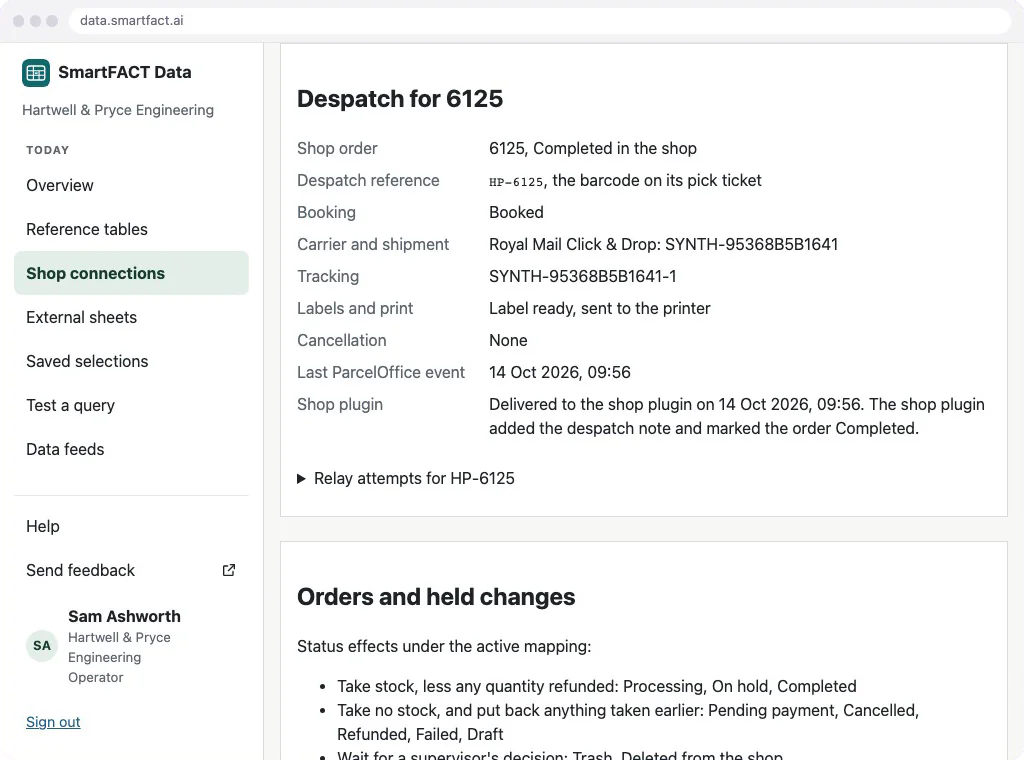
ParcelOffice reports the booking to SmartFACT Data, which keeps the order's despatch record: the carrier, the shipment, the tracking number and the label. Data then sends the booking to its small plugin in the shop, which adds the tracking note to the order and marks it Completed. Data never writes to the shop itself; the plugin only ever completes an order that Data has seen booked, and never touches a cancelled or refunded one. The note can stay private or go to the customer, as the shop chooses.
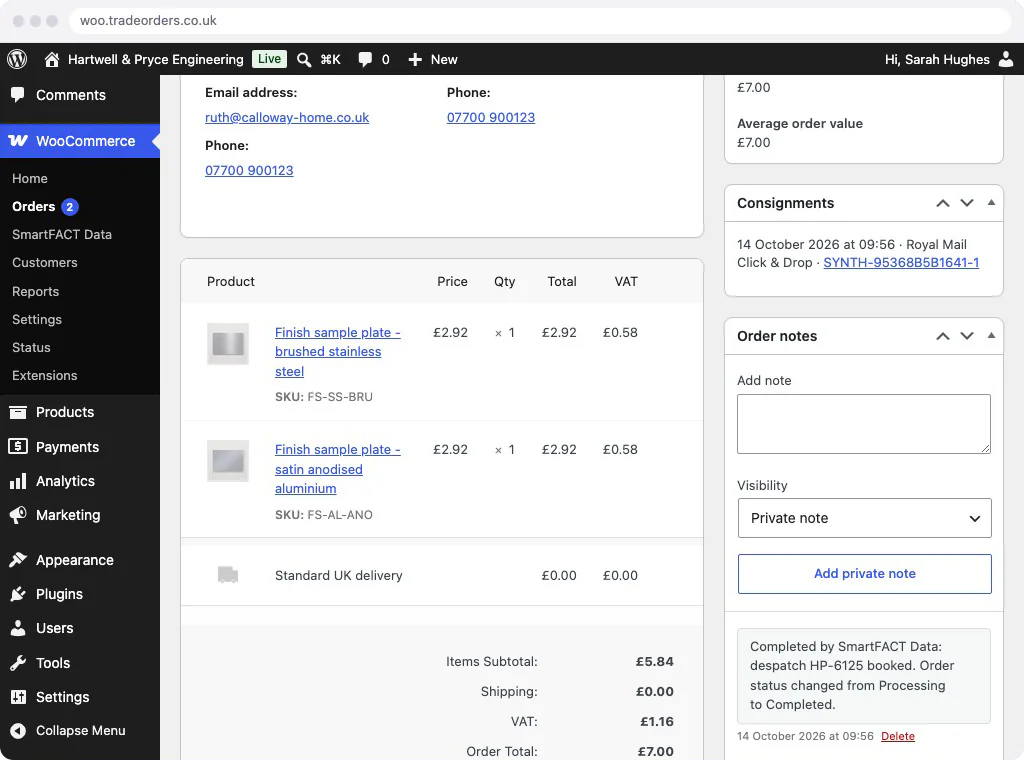
That is the whole job: an order in, a checked pick, a label in one scan, and the shop up to date, with no retyping and nothing to reconcile at the end of the day.
Behind the scenes
The daily job runs smoothly because of a little set-up and a few routines, each with its own record.
Set up once, then count
Each plate gets its own SKU, a home drawer, a reorder level and a target. Then the drawers are counted to give the opening stock. The count is blind: the counter sees the drawer and the SKU, never the expected quantity, so the number is what is really there. Nothing changes stock until a supervisor has reviewed the counts.
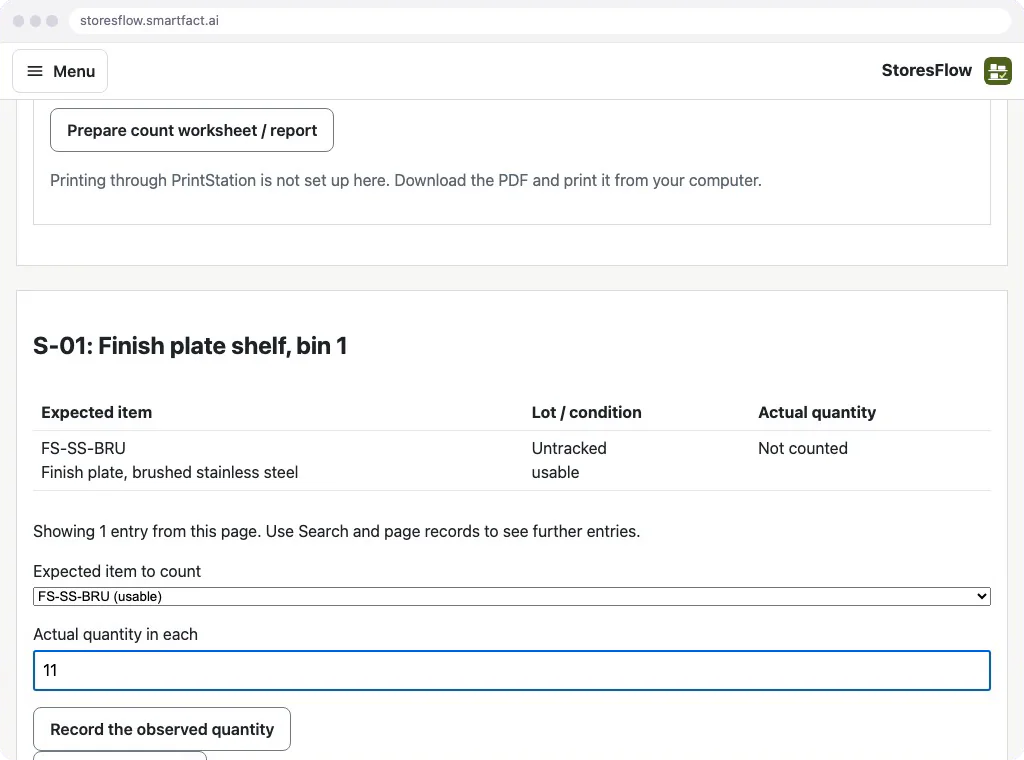
Choose how strict picking should be
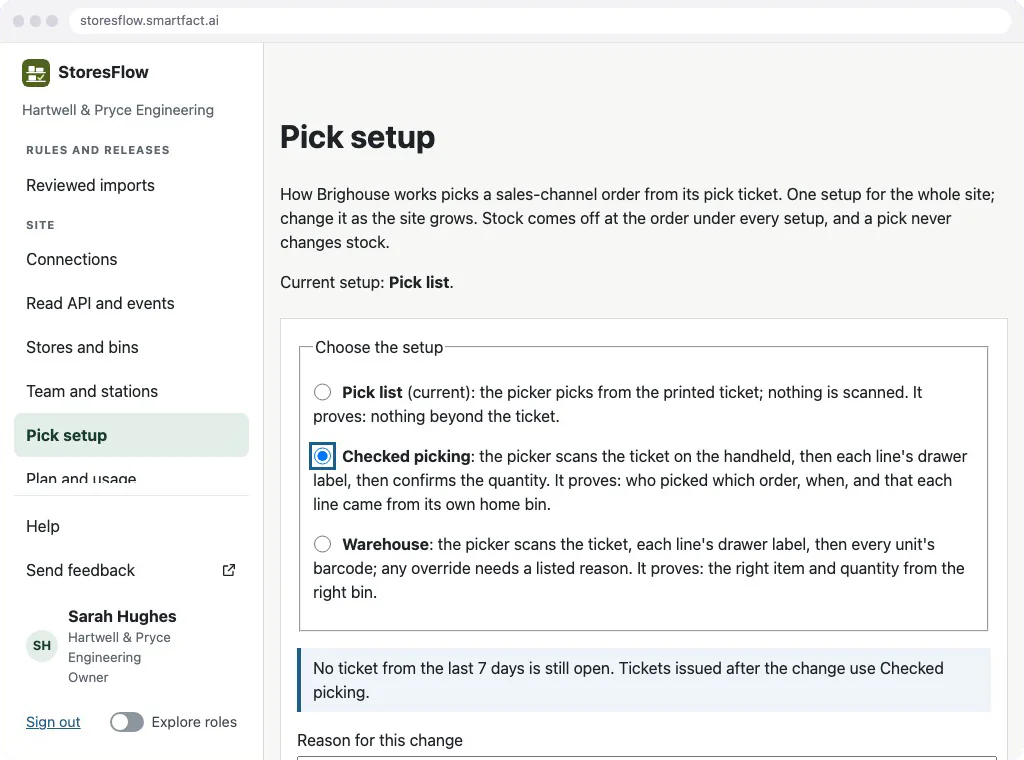
Every site picks one of three setups, and can change it as it grows:
| Setup | What the picker does | What it proves |
|---|---|---|
| Pick list | Picks from the printed ticket | Nothing beyond the ticket |
| Checked picking | Scans the ticket, then each drawer label, and confirms | Who picked which order, when, and from the right drawer |
| Warehouse | Scans the ticket, the bin, then every unit; any override needs a reason | The right item and quantity from the right bin |
A small business can start with the pick list and move up when mistakes start to cost money. Changing the setup is recorded with its reason, and orders already being picked finish under the setup they started with.
Reorder before the drawer runs dry
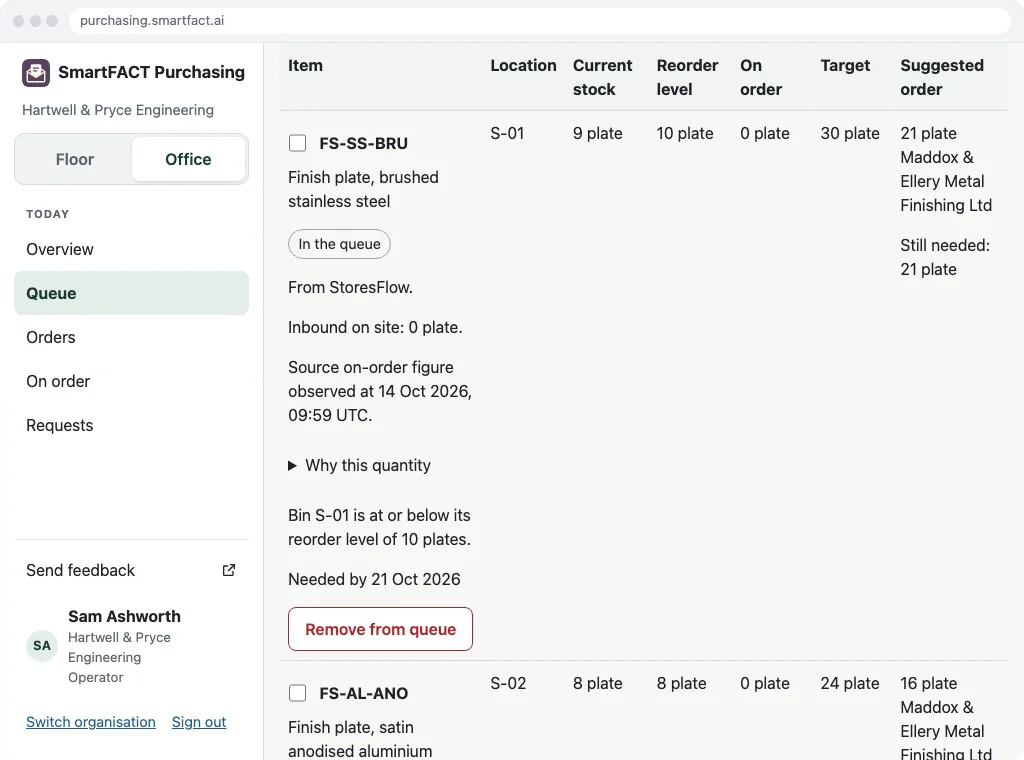
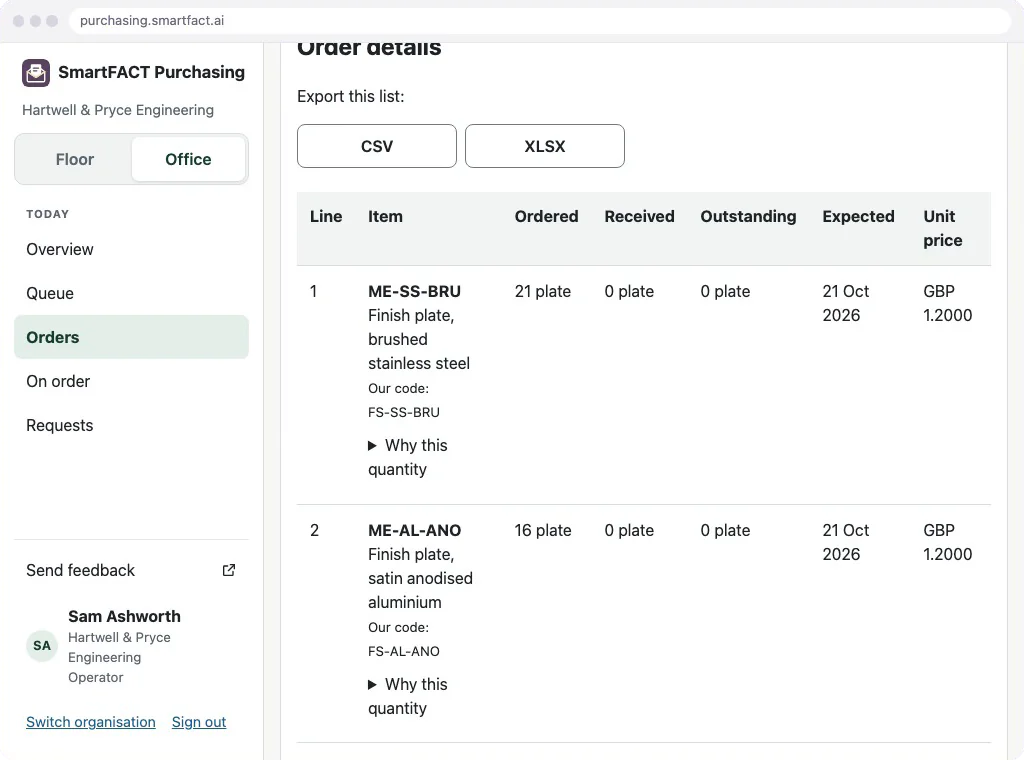
When a plate reaches its reorder level, StoresFlow raises a request in SmartFACT Purchasing. The replenishment queue shows each plate, its stock, what is already on order and a suggested quantity, with the reason for it. A requester turns the lines into a draft order for the supplier, adjusted to the supplier's pack sizes. Only a supervisor can approve it, after a security check, and only then is it emailed to the supplier. Nothing reaches a supplier without a person saying so.
Check what arrives against what was ordered
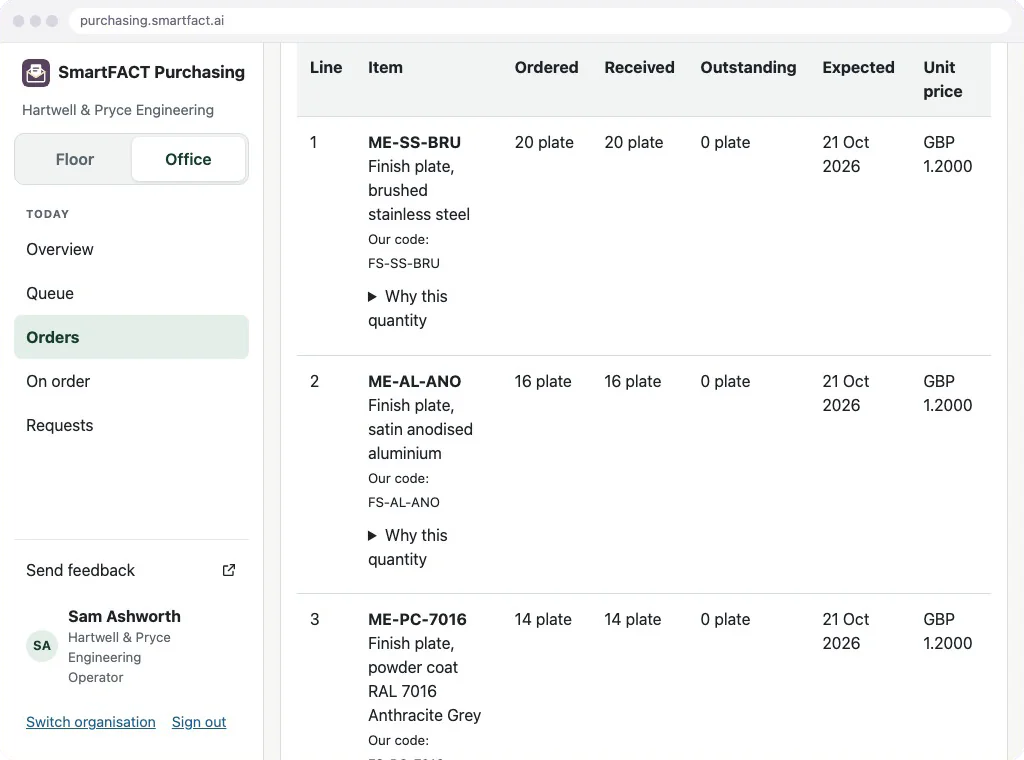
Deliveries are received in StoresFlow against the order's lines, in part or in full, and put away to their home drawers. Purchasing follows each order to the last line delivered, so "is it on order?" always has an answer.
Count regularly, and correct with a reason
Location stocktakes walk the drawers in shelf order. A drawer that is empty, damaged or holding the wrong plate is flagged as it is counted, and a supervisor reviews every difference before stock changes. Any other correction is a manual adjustment with a reason. StoresFlow never overwrites a stock figure: every change is a movement in the ledger, with who made it, when and why.
See where stock stands
The stock list, each plate's own page, search and history show what is in every drawer, what is on order and every movement since the opening count. A scan of a drawer label shows what should be in it.
Why it works
- One job per product. StoresFlow keeps the stock, SmartFACT Data connects the shop, ParcelOffice books the labels, SmartFACT Purchasing orders from suppliers and PrintStation runs the printers. Each keeps its own records, and they exchange only what is named.
- People decide where it matters. Counts are reviewed before they change stock. Orders are approved before they reach a supplier. Important changes need a recent security check.
- Every change has a who, a when and a why. Movements, picks, counts, approvals and despatches are all recorded, and nothing is overwritten.
- Least access. SmartFACT Data reads the shop with a read-only key and keeps no addresses. The shop plugin can do one thing: complete an order that has been booked, with its tracking note.
- Start small, grow into it. One product or five; a printed pick list or a scan for every unit. Links between products appear only when an organisation has both.
- Works with what you have. WooCommerce, Royal Mail and DHL, the label printers you already own, handheld scanners or a phone's camera. Lists export to CSV or Excel.
The products in this showcase
- StoresFlow: stock, bins, pick tickets, picking, receiving, stocktakes and the stock ledger.
- SmartFACT Data: the reviewed connection to the WooCommerce shop, the despatch record and the shop plugin.
- ParcelOffice: the despatch bench, courier labels from one scan.
- SmartFACT Purchasing: the replenishment queue, approval and supplier orders.
- SmartFACT PrintStation: pick tickets and labels to the right printer.
Watch the whole thing

Questions
Is this running for the customer?
It is built and is being prepared for their go-live.
Do I need all five products?
No. StoresFlow keeps sample stock on its own. Each other product adds one job, and connects only if you have both.
Our samples are free. Does that matter?
No. A free sample is a £0 line on the same order; it is picked, posted, reordered and counted in exactly the same way.
Can we start with paper pick lists?
Yes. Start on Pick list and switch to Checked picking when you are ready. Orders already in progress finish the way they started.
Ask for a demonstration to see it with your own samples.
Explore the SmartFACT suite →